If you get this error and your clustered instance will not start, give this MSDN blog a shot:
http://blogs.msdn.com/b/sql_protocols/archive/2005/12/07/500820.aspx
Wednesday, December 11, 2013

Thursday, August 1, 2013
Setting up aliases on a SQL Server with multiple instances
This article will explain how to set up multiple aliases for a SQL Server running multiple instances. Aliases can be an important part of a company's disaster recovery plan as well as aiding in the replacement of an underlying physical or virtual server. By abstracting the name a user or application uses to connect to SQL Server, we gain the ability change the underlying hardware with a few changes to DNS.
At the end of this article, there will be 3 instances of SQL Server running that can accessed either by their SQL instance names or the 3 aliases we are going to create, SQLAlias1, SQLAlias2, SQLAlias3.
Our initial setup is a physical server named WinServer and 3 instances of SQL Server 2008. The first instance is the default instance, with the other two instances named Instance2 and Instance3. We can connect to all 3 instances by using the names WinServer, WinServer\Instance2, and WinServer\Instance3.
Once all 3 instances are setup, we need to add 2 more IP addresses to the WinServer. There is one IP address already assigned to WinServer, 192.168.1.1. By adding two new IP's, 192.168.1.2 and 192.168.1.3, WinServer can be accessed by any of the 3 IP's on the network. Below are screenshots on how to add the 2 new IP's. You may need to coordinate with your network administrator.


Now that the IP's have been created, we need to move into DNS to configure our host names and aliases. Again, you may need to coordinate with your network administrator.




Once that is set you should immediately be able to connect to all the instances on you server using either the SQL instance name or the new aliases setup in DNS.
At the end of this article, there will be 3 instances of SQL Server running that can accessed either by their SQL instance names or the 3 aliases we are going to create, SQLAlias1, SQLAlias2, SQLAlias3.
Our initial setup is a physical server named WinServer and 3 instances of SQL Server 2008. The first instance is the default instance, with the other two instances named Instance2 and Instance3. We can connect to all 3 instances by using the names WinServer, WinServer\Instance2, and WinServer\Instance3.
Once all 3 instances are setup, we need to add 2 more IP addresses to the WinServer. There is one IP address already assigned to WinServer, 192.168.1.1. By adding two new IP's, 192.168.1.2 and 192.168.1.3, WinServer can be accessed by any of the 3 IP's on the network. Below are screenshots on how to add the 2 new IP's. You may need to coordinate with your network administrator.
Add the IP's in the Local Area Connection Properties of the NIC.

Advanced

Add the 2 addresses

Uncheck Register this connection's addresses in DNS

Now that the IP's have been created, we need to move into DNS to configure our host names and aliases. Again, you may need to coordinate with your network administrator.
- WinServer (the physical machine) must be setup as a static IP in DNS. In this instance, 192.168.1.1.
- SQLAlias1, which will point to the default instance on WinServer, will be setup as a DNS alias or CNAME. Basically, it is a pointer to WinServer.
- SQLAlias2, which will point to WinServer\Instance2, will be setup as a new Host (A) record in DNS with an address of 192.168.1.2.
- SQLAlias3, which will point to WinServer\Instance3, will be setup as a new Host (A) record in DNS with an address of 192.168.1.3.
Once these are setup, you may have to flush your DNS cache and re-register. You can do this by running the following commands in the command prompt.
- ipconfig /flushdns
- ipconfig /registerdns
You should now be able to ping all 3 aliases and each should resolve to their associated IP address:
- SQLAlias1: 192.168.1.1
- SQLAlias2: 192.168.1.2
- SQLAlias3: 192.168.1.3
Now that everything has been completed on the DNS side, open up SQL Server Configuration Manager on WinServer. There, under SQL Server Network Configuration, you will see the protocols for the 3 instances of SQL Server.

Configure the protocols for each instance one at a time. First, the protocols for the default (MSSQLServer) instance.

Double click the TCP/IP protocol set Listen All to No.

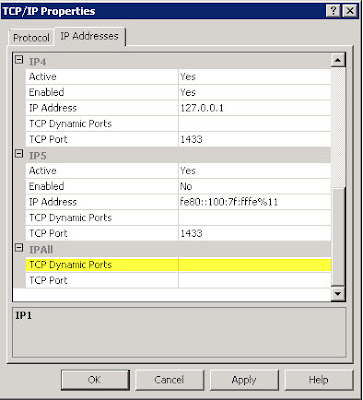
Now, move to the IP Addresses tab and enter the 3 IP Addresses (192.168.1.1, 192.168.1.2, 192.168.1.3) all with the port of your choosing. I chose to keep the default port of 1433 for all three instances. Notice that on the first instance, the Active and Enabled is set to Yes on the IP address of 192.168.1.1 while the other two addresses have Active set to Yes, but Enabled is set to No. Dynamic Ports on the first instance is set to blank, not 0.


Select OK. You will get a warning box that these changes will not take affect until the instance is restarted, but I chose to wait until I'd configured all 3 instances before restarting the 3 SQL services.
Now that the TCP/IP protocol is configured on the default instance, we will configure SQLInstance2 and SQLInstance3 in the same way, with a few subtle differences.
On the TCP/IP protocol setup of SQLInstance2, we will once again set the Listen All to No.

Inside the IP Addresses tab, enter your 3 IP Addresses just like on the first instance. The difference here is that all 3 will again be set to Active, but only 192.168.1.1 and 192.168.1.2 will be set to Enabled, with TCP Dynamic Ports set to 0 on the 192.168.1.1 address. This is done so we can still access the WinServer\Instance2 instance by that name and not just the SQLAlias2 alias.

For SQLIntance3, the TCP/IP protocol setup is basically the same as SQLInstance2, execpt for 1 difference. Listen All will still be set to No and the 192.168.1.1 address will still be set to Yes for Active and Enabled, along with TCP Dynamic Ports set to 0. The different is that on the 192.168.1.2 address, it will be set to No for Enabled, while Enabled is set to Yes for the 192.138.1.3 address.

Note: On all 3 instances, under the IPAll section of the IP Addresses, TCP Dynamic Ports and TCP Port will always be blank.
If you restart all 3 instances now, you will be able to connect to the default instance but will most likely get the following error message when connecting to SQLInstance2 and SQLInstance3.
Login failed. The login is from an untrusted domain and cannot be used with Windows authentication. (Microsoft SQL Server, Error: 18452)If that’s the case you will need to add a new DWORD registry entry under HKEY_LOCAL_MACHINE\SYSTSM\CurrentControlSet\Control\Lsa called DisableLoopbackCheck and set to 1.
Once that is set you should immediately be able to connect to all the instances on you server using either the SQL instance name or the new aliases setup in DNS.
Friday, June 7, 2013
SSRS Error: An item with the same key has already been added
This typically means that you have an column in your dataset query that is specified twice. For instance, SQL will let you return "Order Number" twice in a query, but if you try to use that query in SSRS, it will error with "An item with the same key has already been added".
Remove the second instance of the column or alias the column to a different name to keep the error from coming back.
Remove the second instance of the column or alias the column to a different name to keep the error from coming back.
Monday, May 13, 2013
Word Wrap Annotation in SSIS
I thought I would pass this on since there is no word wrap feature for annotations in SSIS. If you use CTRL+Enter inside the annotation box, SSIS will drop down to the next line to begin typing.
Wednesday, November 21, 2012
SQL Error in the Post Snapshot File for Transactional Replication
When using replication, it is sometimes useful to run a set
of commands on the subscribing database either before or after the initial
snapshot has been applied. By using a pre-snapshot file, a DBA could remove any
dependencies in the subscribing database that would keep the table from being
dropped in the event of a re-initialization. We use post-snapshot files to
create indexes on the subscribing database that do not exist on the publisher.
To find out whether or not pre/post snapshot files are being used, right click
on the publication and choose properties. From there, select snapshot and look
under the “Run additional scripts” section.

So when the subscription is initialized, a snapshot is
prepared and placed in the default folder. Along with the bulk copy files, any
pre or post snapshot files you are using are placed in there too. So the
snapshot is applied to the subscriber and, in this case, a post-snapshot script
is ran against the subscribing database. While the snapshot and the post-snapshot
scripts are being ran, updates to the replicated tables are being queued for
replication in the distribution database. These will be replicated to the
subscriber once the snapshot has been applied and the post-snapshot script has completed.
But what happens in the event that the post-snapshot script
has an error? The distribution agent considers this to be a failure and retries
the post-snapshot script over and over again. While this is happening, updates
that are queued for distribution are not being applied to the subscriber. How
can we fix this?
One option is to open the post-snapshot file at the location
under “Run additional scripts”, fix the error, reinitialize the subscription and re-create the
snapshot. This might not be the best option depending on the size of your
snapshot and the time it takes to generate it.
The second option is to directly open the post-snapshot file
that was copied into the folder when the snapshot was created. By editing the
post-snapshot file in the folder specified in the “Put files in the default
folder” option, we are directly modifying the SQL that the distribution agent
is executing and failing on. If time is critical, you may want to remove all SQL
from the file and save it. Note: If you do this, you will have to manually apply the SQL to the subscriber. Once the error in the file either is fixed or the file is cleaned out, the distribution agent will open
the file and complete successfully. After that, all the
queue updates, inserts and deletes can flow from the publisher to the
subscriber. Tuesday, July 17, 2012
SQL Reporting Services (SSRS) 2008 R2 Administration Scripts
Below are a few SQL Reporting Services administration scripts that I've created to help me audit usage of the system.
1. Report Usage Count By User For The Previous 30 Days
2. Report Usage With Parameters, Row Count, Execution Time, Format and User Name
3. Report Location with Creation Date, Last Execution Date, and Usage Count
1. Report Usage Count By User For The Previous 30 Days
SELECT  UserName

       ,COUNT(*) AS TimesExecuted
FROM ReportServer.dbo.ExecutionLog3WHERE ItemPath LIKE '%<ReportName>%'
AND TimeStart > GETDATE() - 30GROUP BY UserNameORDER BY 2 DESC
2. Report Usage With Parameters, Row Count, Execution Time, Format and User Name
SELECT  TimeStart

       ,Source

       ,[RowCount]

       ,Parameters

       ,UserName

       ,RequestType

       ,Format

       ,TimeDataRetrieval + TimeProcessing + TimeRendering [TimeInMilliseconds]
FROM dbo.ExecutionLog3WHERE ItemPath LIKE '%<ReportName>%'
AND TimeStart BETWEEN '3/10/12' AND '6/11/12'ORDER BY 1 DESC3. Report Location with Creation Date, Last Execution Date, and Usage Count
SELECT  Name
       ,CreationDate
       ,Path
       ,E.TimesExecuted
       ,E.LastExecutedFROM    Catalog
        INNER JOIN (SELECT  ItemPath
                           ,COUNT(*) AS TimesExecuted
                           ,MAX(TimeStart) AS LastExecuted
                    FROM    ExecutionLog3
                    GROUP BY ItemPath) E
        ON CATALOG.PATH = E.ItemPathWHERE   Path LIKE '/Reports%'
        AND TYPE = 2ORDER BY 2 DESC
Monday, July 16, 2012
Subsystem 'CmdExec' could not be loaded (reason: The specified module could not be found)
After a recent server crash, we had the opprotunity to rebuild the SQL Server instance from the previous nights backups. After going through the various steps to restore the Master and MSDB databases, as well as change the location of the tempdb, resource and model databases, we thought everything was set.
Over the weekend, the server in question was set to backup user databases to a file share using SQLCMD. Upon starting the job, the SQL Agent returned the following error message: "Unable to start execution of step 1 (reason: The CMDEXEC subsystem failed to load [see the SQLAGENT.OUT file for details]; The job has been suspended). The step failed."
After looking throught the SQLAGENT.OUT file (which yielded the same error message), we took a look at the MSDB..SYSSUBSYSTEMS table. Looking in the subsystem_dll column, the issue presented itself.
SELECT subsystem
,subsystem_dll
FROM msdb..syssubsystems
subsystem subsystem_dll
CmdExec D:\Program Files\Microsoft SQL Server\MSSQL.1\MSSQL\binn\SQLCMDSS90.DLL
During the server rebuild, the SQL Server program files where installed under the C:\Program Files directory whereas on the crashed server installation, all the old binaries were installed under D:\Program Files. Since we restored the MSDB database from an old backup, those values overwrote the values from the new server install.
In order for the binaries to load, MSDB..SYSSUBSYSTEMS table had to be updated.
UPDATE msdb..syssubsystems
SET subsystem_dll = REPLACE(subsystem_dll,'D;\','C:\')
WHERE subsystem = 'CMDEXEC'
Once the subsystem_dll column has been updated to point to the C:\Program File directory, we restarted the SQL Agent service and checked the SQLAGENT.OUT file again. The error message was gone and the job completed successfully after we restarted it.
Over the weekend, the server in question was set to backup user databases to a file share using SQLCMD. Upon starting the job, the SQL Agent returned the following error message: "Unable to start execution of step 1 (reason: The CMDEXEC subsystem failed to load [see the SQLAGENT.OUT file for details]; The job has been suspended). The step failed."
After looking throught the SQLAGENT.OUT file (which yielded the same error message), we took a look at the MSDB..SYSSUBSYSTEMS table. Looking in the subsystem_dll column, the issue presented itself.
SELECT subsystem
,subsystem_dll
FROM msdb..syssubsystems
subsystem subsystem_dll
CmdExec D:\Program Files\Microsoft SQL Server\MSSQL.1\MSSQL\binn\SQLCMDSS90.DLL
During the server rebuild, the SQL Server program files where installed under the C:\Program Files directory whereas on the crashed server installation, all the old binaries were installed under D:\Program Files. Since we restored the MSDB database from an old backup, those values overwrote the values from the new server install.
In order for the binaries to load, MSDB..SYSSUBSYSTEMS table had to be updated.
UPDATE msdb..syssubsystems
SET subsystem_dll = REPLACE(subsystem_dll,'D;\','C:\')
WHERE subsystem = 'CMDEXEC'
Once the subsystem_dll column has been updated to point to the C:\Program File directory, we restarted the SQL Agent service and checked the SQLAGENT.OUT file again. The error message was gone and the job completed successfully after we restarted it.
Subscribe to:
Posts (Atom)