If your running SQL Server 2008 Enterprise
and have the need to restrict certain users or groups from executing runaway
queries, then the Resource Governor might be what you are looking for. By
creating the right mix of workload groups and resource pools, a DBA can create
an environment that is more predictable and stable, while maintaining the
availability of resources for all users.
In this example, I'll create a Workload
Group that only Windows logins will use. I used the distinction of Windows
logins vs SQL logins because all the produciton applications hitting this
server use SQL authentication while any users (aside from the sys admins) doing
ad hoc analytics use Windows authentication. Many times when users are doing ad
hoc analytics, they are digging through the data and looking for trends, which
lends itself to someone using "Select *". That kind of query on very wide and deep
tables can easily lock a table needed for the production applications. This is where
the resource governor can help. By limiting the amount of resources a query or
a session can have, a DBA can make other sessions on the server execute more
predicitbly.
There is quite a bit of setup involved with
the Resource Governor and there are many different ways to do it, so that steps
I take below will obviously have to be tailored to your enviornment.
There are 3 main parts to setting up the
Resource Governor:
1.
Resource Pool: A pool of resources
that Workload Groups will access.
2.
Workload Group: Group that logins belong to based on the Classifier Function.
3.
Classifier Function: Function that
assigns logins to Workload Groups.
First , let's do the setup for the
classifier. Since we are classififing on login type (SQL or Windows) our
Classifier Function should be quite simple, but the Classifier Function
has to be schema bound, which means we can't reference
sys.server_principals. So since we can't use the system tables in the
Classifier Function, we need to create our own table in the MASTER database to
keep SQL login information.
CREATE TABLE [SQLLoginsList]
(SQL_LoginName sysname)
Now we need to populate the table with all
the existing SQL Logins.
Insert Into SQLLoginsList
Select Name From sys.Server_Principals Where [Type] = N'S'
Once the table is in place, a server
trigger needs to be created to insert into the SQLLoginsList table any time a
new SQL Login is created.
SET ANSI_NULLS ON
GO
SET QUOTED_IDENTIFIER ON
GO
CREATE TRIGGER [srv_trg_SQLLoginList] ON
ALL SERVER
WITH EXECUTE AS 'sa'
FOR CREATE_LOGIN
AS
SET NOCOUNT ON
SET CONCAT_NULL_YIELDS_NULL ON
SET ANSI_PADDING ON
SET ANSI_WARNINGS ON
IF (SELECT
EVENTDATA().value('(//LoginType)[1]', 'VARCHAR(255)')) = 'SQL Login'
BEGIN
IF NOT EXISTS ( SELECT *
FROM SQLLoginsList
WHERE SQL_LoginName =
EVENTDATA().value('(//ObjectName)[1]','VARCHAR(255)') )
BEGIN
INSERT
dbo.SQLLoginsList(SQL_LoginName)
SELECT
EVENTDATA().value('(//ObjectName)[1]','VARCHAR(255)')
END
END
GO
SET ANSI_NULLS OFF
GO
SET QUOTED_IDENTIFIER OFF
GO
ENABLE TRIGGER [srv_trg_SQLLoginList] ON
ALL SERVER
GO
Now that we have a place to query SQL
Logins and a mechanism to catch newly created ones, we can start creating our
Resource Pool and Workload Group.
When creating a Resource Pool, there are 4
properties that can be set.
1.
MIN_CPU_PERCENT: The minimum CPU
bandwidth for the pool when there is CPU contention.
2.
MAX_CPU_PERCENT: The max CPU
bandwidth for the pool when there is CPU contention.
3.
MIN_MEMORY_PERCENT: minimum amount of memory reserved for this pool.
4.
MAX_MEMORY_PERCENT: maximum amount
of memory requests in this pool can consume.
The "when there is CPU
contention" because CPU contention is a soft limit, meaning when there
is no CPU contention the pool will consume as much CPU as it needs.
CREATE RESOURCE POOL pAdhocProcessing
WITH
(MIN_CPU_PERCENT = 0 --no min cpu bandwidth
for pool WHEN THERE IS CONTENTION
,MAX_CPU_PERCENT = 25 --max cpu bandwidth for
the pool WHEN THERE IS CONTENTION
,MIN_MEMORY_PERCENT = 0 --no memory
reservation for this pool
,MAX_MEMORY_PERCENT
= 25 --max server memory this pool can take
)
Next comes the creation of the Workload
Group. By default there is already a group called "default" that all
users are placed into if they aren't placed into another Workload Group by the
Classifier Function. Think of the Workload Groups as buckets of users that can
dip water (resources) from an assigned "pool" (Resource Pool). Each
Workload Group can only have one Resource Pool, but a Resouce Pool can have
many Workload Groups assigned to it.
When creating a Workload Group, there are 6
properties that can be set.
1.
IMPORTANCE: Gives a precedence or
"importance" to CPU resources available in the Resource Pool.
2.
REQUEST_MAX_MEMORY_GRNT_PERCENT:
Amount of memory one request can take from Resource Pool.
3.
REQUEST_MAX_CPU_TIME_SEC: Amount of
total CPU time a request can have.
4.
REQUEST_MEMORY_GRANT_TIMEOUT_SEC:
Maximum amount of time a request will wait for resource to free up.
5.
MAX_DOP: Max Degree of Parallelism a
query can execute with. This option takes precedence over any query hint or
server setting.
6.
GROUP_MAX_REQUESTS: Amount of
requests this group can simultaneously issue.
The following script will create the
Workload Group and assign it to a Resource Pool
CREATE WORKLOAD GROUP gAdhocProcessing
WITH
(IMPORTANCE = LOW --Low importance meaning the scheduler will execute
medium (default) session 3 times more often
,REQUEST_MAX_MEMORY_GRANT_PERCENT = 25 --one person can only take 25
percent of the memory afforded to the pool
,REQUEST_MAX_CPU_TIME_SEC = 60 --can only take a TOTAL of 60 seconds of
CPU time (this is not total query time)
,REQUEST_MEMORY_GRANT_TIMEOUT_SEC = 60 --max amount of time a query will
wait for resource to become available
,MAX_DOP = 1 --overrides all other DOP hints and server settings
,GROUP_MAX_REQUESTS = 0 --unlimited requests (default) in this group
)
Using pAdhocProcessing
At this point, we should see the following
under Management --> Resource Governor
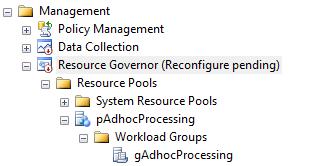 The Resource Governor will stay in "Reconfigure
Pending" status until we create the Classifier Function and issue a
Reconfigure Command to turn the Resource Governor on.
The Resource Governor will stay in "Reconfigure
Pending" status until we create the Classifier Function and issue a
Reconfigure Command to turn the Resource Governor on.
Finally, we'll create our Classifier
Function that will place all incoming requests into either the gAdhocProcessing
group or the default group. This function looks a lot like any other scalar
function with the excepting that is had to be created using "With
SchemaBinding". Based on the login type and whether the login is a
sysadmin, the function will return what Resource Group the request should fall
into.
CREATE FUNCTION fnLoginClassifier()
RETURNS sysname
WITH SCHEMABINDING
as
Begin
Declare @Login sysname
set
@Login = SUser_Name()
if
(IS_SRVROLEMEMBER('sysadmin') = 1)
--Server Admins
Return N'default'
else if (Select Count(*) from dbo.[SQLLoginsList] Where SQL_LoginName =
@Login) > 0 --SQL Logins
Return N'default'
else if @Login like '<domain>%' --Windows Logins
Return N'gAdhocProcessing'
--If nothing is returned, put it in the default group just in case
Return N'default'
End
GO
Now that the Classifier Function has been
created we have to tell the Resource Governor to use that function as it's
classifier.
ALTER RESOURCE GOVERNOR with
(CLASSIFIER_FUNCTION = dbo.fnLoginClassifier)
At this point, if we right click the Resource Governor in the Object Explorer and
choose properties we will should see the following.
The Resource Pool pAdhocProcessing has been
created and the Workload Group gAdhocProcessing has been assigned to it. Also,
the fnLoginClassifier function shows as the Classifier function name and the
message at the top signals us that the Resource Governor has pending changes
and that we need to issue a Reconfigure command to enable the governor.
Now all that's left to do is turn it on. We
can do that by issuing the following command.
ALTER RESOURCE GOVERNOR RECONFIGURE
Once the Resource Governor is turned on, we
can monitor the amount of sessions each login has open and what Workload Group
they have been assigned to.
SELECT
WG.name
,COUNT(*)
,ES.login_name
,es.program_name
FROM
sys.dm_exec_sessions ES
INNER JOIN sys.dm_resource_governor_workload_groups WG
ON ES.group_id = WG.group_id
GROUP BY
WG.name,es.login_name,es.program_name
ORDER BY login_name
If for some reason the Resource Governor is
not working as it should, issue the following command to disable it.
ALTER RESOURCE GOVERNOR DISABLE
Since it is possible on a busy system to
lock yourself out by configuring the Resource Governor incorrectly, you may
have to sign in with the Dedicated Administrator Connection (DAC). That
connection uses the internal Workload Group and cannot have it's resources
altered. Once you have established a connection using the DAC, you will have
the ability to either disable the Resouce Governor or remove the Classifier
Function. If you remove the Classifier Function, all incoming connections will
fall to the default group. To remove the Classifier Function, issue the
following commands.
ALTER RESOURCE GOVERNOR with
(CLASSIFIER_FUNCTION = NULL)
ALTER RESOURCE GOVERNOR RECONFIGURE


