Monday, May 8, 2017
How to check if Replication components are installed on your SQL Server instance
EXEC sp_MS_replication_installed
Not installed:
Installed:
Friday, November 18, 2016
Query for Change Data Capture (CDC) tables and columns
SELECT OBJECT_NAME(source_object_id) [Table Name],
(SELECT name + ',' FROM sys.columns SC WHERE SC.object_id = CT.object_id AND name NOT LIKE '__$%' FOR XML PATH('')) [Columns],
capture_instance,
supports_net_changes,
filegroup_name
FROM CDC.change_tables CT
Thursday, September 3, 2015
Sending Availability Group replication traffic through a dedicated network.
We recently set up a SQL 2012 HADR solution that took advantage of Availability Groups (AG’s). In this instance, we utilized a multi-subnet cluster to allow for the primary replica to live in our primary data center, while having the secondary replica in another data center.
Note: In this setup, only asynchronous replicas are allowed.
On each of the servers in the cluster, we have 3 network connections.
Public: All user traffic will flow through this connection
Private: For internal cluster communication
Replication: All AG traffic will be routed through this
After those dedicated connections are setup, database mirroring endpoints are used to receive connections other instances in the AG. You can read more about database endpoints here. Usually, when the endpoints are created in an AG, the following script is executed without specifying a specific IP to use.
--Replica1
CREATE ENDPOINT Hadr_Endpoint
AS TCP(LISTENER_PORT = 5022)
FOR DATA_MIRRORING(ROLE = ALL, ENCRYPTION = REQUIRED ALGORITHM AES)
GO
ALTER ENDPOINT Hadr_Endpoint STATE = STARTED
GO
--Replica2
CREATE ENDPOINT Hadr_Endpoint
AS TCP(LISTENER_PORT = 5022)
FOR DATA_MIRRORING(ROLE = ALL, ENCRYPTION = REQUIRED ALGORITHM AES)
GO
ALTER ENDPOINT Hadr_Endpoint STATE = STARTED
GO
Without specifying an IP that the endpoint is listening on, the listener will accept a connection on any valid IP. But, if we want to make sure our AG and user traffic are segregated, we must specify the IP of the Replication network connection. So the script would look like so:
--Replica1
CREATE ENDPOINT [Hadr_endpoint]
STATE=STARTED
AS TCP (LISTENER_PORT = 5022, LISTENER_IP = (10.10.10.89)) --<-- Your Replication IP here
FOR DATA_MIRRORING (ROLE = ALL, AUTHENTICATION = WINDOWS NEGOTIATE
, ENCRYPTION = REQUIRED ALGORITHM AES)
GO
ALTER ENDPOINT Hadr_Endpoint STATE = STARTED
GO
--Replica2
CREATE ENDPOINT [Hadr_endpoint]
STATE=STARTED
AS TCP (LISTENER_PORT = 5022, LISTENER_IP = (10.10.20.89)) --<-- Your Replication IP here
FOR DATA_MIRRORING (ROLE = ALL, AUTHENTICATION = WINDOWS NEGOTIATE
, ENCRYPTION = REQUIRED ALGORITHM AES)
GO
ALTER ENDPOINT Hadr_Endpoint STATE = STARTED
GO
You can reference the BOL article for creating an endpoint here
NOTE: Equally important when using the CREATE AVAILABILITY GROUP statement is to specify the replication IP in the ENDPOINT_URL section. By default, when scripting the AG, the FQDN will show in that section.
CREATE AVAILABILITY GROUP MyAG
FOR DATABASE MyDB1, MyDB2
REPLICA ON
'COMPUTER01' WITH
( ENDPOINT_URL = 'TCP://10.10.10.89:5022',
AVAILABILITY_MODE = ASYNCHRONOUS_COMMIT,
FAILOVER_MODE = MANUAL ),
'COMPUTER02' WITH
( ENDPOINT_URL = 'TCP://10.10.20.89:5022',
AVAILABILITY_MODE = ASYNCHRONOUS_COMMIT,
FAILOVER_MODE = MANUAL );
You can read up on the CREATE AVAILABILITY GROUP statement here.
After this done, and you’ve completed the rest of the AG setup, replication traffic will be routed through your Replication network. A quick and easy test of this is to open up Windows Task Manager and watch the traffic on the three different Ethernet connections.
Note the adapter name for each connection.
To test this open up an SSMS connection to the AG listener and send a large amount of DML statements to a database within the AG. If you setup the endpoint with the default LISTENER_IP = ALL, you’ll most likely see a high amount of send and receive traffic on Public interface. But, if you’ve setup the endpoint to listen on the Replication IP, you’ll see a large amount of receive traffic on the Public interface (DML) and a high amount of send traffic on the Replication interface (sending the changes to the secondary replica).
Thursday, August 27, 2015
Nodes are not consistently configured with IPv4 and/or IPv6 addresses on network adapters that are usable by the cluster.
"Nodes are not consistently configured with IPv4 and/or IPv6 addresses on network adapters
that are usable by the cluster."
Below that entry was as follows:
Node <Server1> configured with IP addresses from protocol IPv4
Node <Server2> is configured with IP addresses from protocol IPv4 and IPv6
After comparing ipconfig /all and device manager (show hidden devices) entries on both nodes, Server2 included 4 Microsoft ISATAP Adapters, while Server1 didn't.
![]() |
| Shown here as already disabled |
Friday, June 7, 2013
SSRS Error: An item with the same key has already been added
Remove the second instance of the column or alias the column to a different name to keep the error from coming back.
Monday, May 13, 2013
Word Wrap Annotation in SSIS
Wednesday, November 21, 2012
SQL Error in the Post Snapshot File for Transactional Replication
Tuesday, January 10, 2012
Finding Open Cursors (And Their Locks) In SQL Server
SELECTc.session_id
,c.cursor_id
,c.properties
,c.creation_time
,c.is_open
,c.fetch_status
,c.dormant_duration
,s.login_time
,t.text
FROM
sys.dm_exec_cursors (0) c
JOIN sys.dm_exec_sessions s
ON c.session_id = s.session_id
CROSS APPLY sys.dm_exec_sql_text(c.sql_handle) t
If you need to see if one of those cursors is holding locks on your system, you can use the sys.dm_tran_locks and sys.dm_exec_sessions DMV 's along with the sys.partitions catalog view to see the cursor and the table it has locked.
SELECTOBJECT_NAME(P.object_id) AS TableName
,L.resource_type
,L.resource_description
,L.request_session_id
,L.request_mode
,L.request_type
,L.request_status
,L.request_reference_count
,L.request_lifetime
,L.request_owner_type
,s.transaction_isolation_level
,s.login_name
,s.login_time
,s.last_request_start_time
,s.last_request_end_time
,s.status
,s.program_name
,s.login_name
,s.nt_user_name
--,c.connect_time
--,c.last_read
--,c.last_write
--,t.text
FROM
sys.dm_tran_locks L
JOIN sys.partitions P
ON L.resource_associated_entity_id = P.hobt_id
JOIN sys.dm_exec_sessions s
ON L.request_session_id = s.session_id
--JOIN sys.dm_exec_connections c
--ON s.session_id = c.most_recent_session_id
--CROSS APPLY sys.dm_exec_sql_text(c.most_recent_sql_handle) t
WHERE
L.request_owner_type = 'CURSOR'
ORDER
BY L.request_session_id
Wednesday, January 4, 2012
Starting a SQL Agent job with Powershell and Windows Scheduled Tasks
First, let’s create the Powershell script. It’s very basic and relies on Windows Authentication and SQL Native Client to connect to the SQL Server.
#Vars for Server and JobName
$Server = "<Server>"
$JobName = "<JobName>"
#Create/Open Connection
$sqlConn = new-object System.Data.SqlClient.sqlConnection "server=$Server;database=msdb;Integrated Security=sspi"
$sqlConn.Open()
#Create Command Obj
$sqlCommand = $sqlConn.CreateCommand()
$sqlCommand.CommandText = "EXEC dbo.sp_start_job N'$JobName'"
#Exec Command
$sqlCommand.ExecuteReader()
#Close Conneection
$sqlConn.Close()
In a nutshell, this script will need you to set 2 variables, $Server and $JobName. Once those have been set, the script will open up a connection to the server, execute the sp_start_job command and then close the connection.
Next, we want to start the Powershell script via Windows Scheduled Tasks. When setting up the task, choose "Start a program" under Action and type powershell.exe . We specify the Powershell script to execute in the additional arguments. By adding &'\\<filepath>\StartTest_SQL_AgentJob.ps1' Powershell will start up and execute the script.
Note: If your <filepath> has spaces in it, you will need the "&", otherwise it can be omitted.
Wednesday, November 16, 2011
Resource Governor - A Practical Example
In this example, I'll create a Workload Group that only Windows logins will use. I used the distinction of Windows logins vs SQL logins because all the produciton applications hitting this server use SQL authentication while any users (aside from the sys admins) doing ad hoc analytics use Windows authentication. Many times when users are doing ad hoc analytics, they are digging through the data and looking for trends, which lends itself to someone using "Select *". That kind of query on very wide and deep tables can easily lock a table needed for the production applications. This is where the resource governor can help. By limiting the amount of resources a query or a session can have, a DBA can make other sessions on the server execute more predicitbly.
There are 3 main parts to setting up the Resource Governor:
1. Resource Pool: A pool of resources that Workload Groups will access.
2. Workload Group: Group that logins belong to based on the Classifier Function.
3. Classifier Function: Function that assigns logins to Workload Groups.
CREATE TABLE [SQLLoginsList]
(SQL_LoginName sysname)
Now we need to populate the table with all the existing SQL Logins.
Insert Into SQLLoginsList
Select Name From sys.Server_Principals Where [Type] = N'S'
SET QUOTED_IDENTIFIER ON
GO
CREATE TRIGGER [srv_trg_SQLLoginList] ON ALL SERVER
WITH EXECUTE AS 'sa'
FOR CREATE_LOGIN
AS
SET NOCOUNT ON
SET CONCAT_NULL_YIELDS_NULL ON
SET ANSI_PADDING ON
SET ANSI_WARNINGS ON
IF NOT EXISTS ( SELECT *
FROM SQLLoginsList
WHERE SQL_LoginName = EVENTDATA().value('(//ObjectName)[1]','VARCHAR(255)') )
BEGIN
INSERT dbo.SQLLoginsList(SQL_LoginName)
SELECT EVENTDATA().value('(//ObjectName)[1]','VARCHAR(255)')
END
END
GO
SET ANSI_NULLS OFF
GO
SET QUOTED_IDENTIFIER OFF
GO
2. MAX_CPU_PERCENT: The max CPU bandwidth for the pool when there is CPU contention.
3. MIN_MEMORY_PERCENT: minimum amount of memory reserved for this pool.
4. MAX_MEMORY_PERCENT: maximum amount of memory requests in this pool can consume.
The "when there is CPU contention" because CPU contention is a soft limit, meaning when there is no CPU contention the pool will consume as much CPU as it needs.
CREATE RESOURCE POOL pAdhocProcessing
WITH
(MIN_CPU_PERCENT = 0 --no min cpu bandwidth for pool WHEN THERE IS CONTENTION
,MAX_CPU_PERCENT = 25 --max cpu bandwidth for the pool WHEN THERE IS CONTENTION
,MIN_MEMORY_PERCENT = 0 --no memory reservation for this pool
,MAX_MEMORY_PERCENT = 25 --max server memory this pool can take
)
2. REQUEST_MAX_MEMORY_GRNT_PERCENT: Amount of memory one request can take from Resource Pool.
3. REQUEST_MAX_CPU_TIME_SEC: Amount of total CPU time a request can have.
4. REQUEST_MEMORY_GRANT_TIMEOUT_SEC: Maximum amount of time a request will wait for resource to free up.
5. MAX_DOP: Max Degree of Parallelism a query can execute with. This option takes precedence over any query hint or server setting.
6. GROUP_MAX_REQUESTS: Amount of requests this group can simultaneously issue.
The following script will create the Workload Group and assign it to a Resource Pool
CREATE WORKLOAD GROUP gAdhocProcessing
WITH
(IMPORTANCE = LOW --Low importance meaning the scheduler will execute medium (default) session 3 times more often
,REQUEST_MAX_MEMORY_GRANT_PERCENT = 25 --one person can only take 25 percent of the memory afforded to the pool
,REQUEST_MAX_CPU_TIME_SEC = 60 --can only take a TOTAL of 60 seconds of CPU time (this is not total query time)
,REQUEST_MEMORY_GRANT_TIMEOUT_SEC = 60 --max amount of time a query will wait for resource to become available
,MAX_DOP = 1 --overrides all other DOP hints and server settings
,GROUP_MAX_REQUESTS = 0 --unlimited requests (default) in this group
)
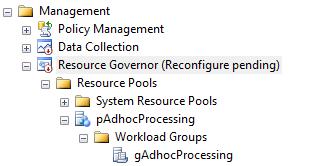
At this point, we should see the following under Management --> Resource Governor

The Resource Governor will stay in "Reconfigure Pending" status until we create the Classifier Function and issue a Reconfigure Command to turn the Resource Governor on.
WITH SCHEMABINDING
as
Begin
Declare @Login sysname
set @Login = SUser_Name()
else if (Select Count(*) from dbo.[SQLLoginsList] Where SQL_LoginName = @Login) > 0 --SQL Logins
Return N'default'
else if @Login like '<domain>%' --Windows Logins
Return N'gAdhocProcessing'
End
GO
The Resource Pool pAdhocProcessing has been created and the Workload Group gAdhocProcessing has been assigned to it. Also, the fnLoginClassifier function shows as the Classifier function name and the message at the top signals us that the Resource Governor has pending changes and that we need to issue a Reconfigure command to enable the governor.
Once the Resource Governor is turned on, we can monitor the amount of sessions each login has open and what Workload Group they have been assigned to.
,ES.login_name
,es.program_name
FROM sys.dm_exec_sessions ES
INNER JOIN sys.dm_resource_governor_workload_groups WG
ON ES.group_id = WG.group_id
GROUP BY WG.name,es.login_name,es.program_name
ORDER BY login_name
Since it is possible on a busy system to lock yourself out by configuring the Resource Governor incorrectly, you may have to sign in with the Dedicated Administrator Connection (DAC). That connection uses the internal Workload Group and cannot have it's resources altered. Once you have established a connection using the DAC, you will have the ability to either disable the Resouce Governor or remove the Classifier Function. If you remove the Classifier Function, all incoming connections will fall to the default group. To remove the Classifier Function, issue the following commands.
ALTER RESOURCE GOVERNOR with (CLASSIFIER_FUNCTION = NULL)
ALTER RESOURCE GOVERNOR RECONFIGURE
Thursday, October 13, 2011
Remove an Article from Transactional Replication without dropping the Subscription
So how can we get around re-initialization of the subscriber and new snapshot generation? We manually execute some of the replication stored procedures to remove the article and keep the snapshot from being invalidated.
First we must use sp_dropsubscription to remove the subscription to the individual article.
@article = '<ArticleToDrop>',
@subscriber = '<SubscribingServer>',
@destination_db = '<DestinationDatabase>'
Next, we drop the article from the publication without invalidating the snapshot. We do that by executing sp_droparticle with the force_invalidate_snapshot set to 0.
EXEC sys.sp_droparticle @publication = '<PublicationName>',
@article = '<ArticleToDrop>',
@force_invalidate_snapshot = 0
Thursday, August 18, 2011
Finding Stored Procedures Related to Replication
SELECT [publisher]
,[publisher_db]
,[publication]
,[object_name]
,[object_type]
,[article]
FROM [MSreplication_objects]
WHERE [object_type] = 'P'
FROM sys.procedures
WHERE name NOT IN (SELECT [object_name]
FROM MSreplication_objects
WHERE [object_type] = 'P')
Wednesday, August 17, 2011
Backing Up an Analysis Services Database
<DatabaseID>Insert SSAS Database name here</DatabaseID>
</Object>
<File>file_location\file_name.abf</File>
<AllowOverwrite>true</AllowOverwrite>
</Backup>
Monday, April 25, 2011
Getting SQL Server Error Messages to Write to the Event Log
Message_id
|
Language_id
|
Severity
|
Is_event_logged
|
Text
|
229
|
1033
|
14
|
0
|
The %ls permission was denied on the object '%.*ls', database '%.*ls', schema '%.*ls'.
|


